How to Sort Gmail the Same Way Across Multiple Accounts
Set up matching labels and filters to organize mail the same way in each account.
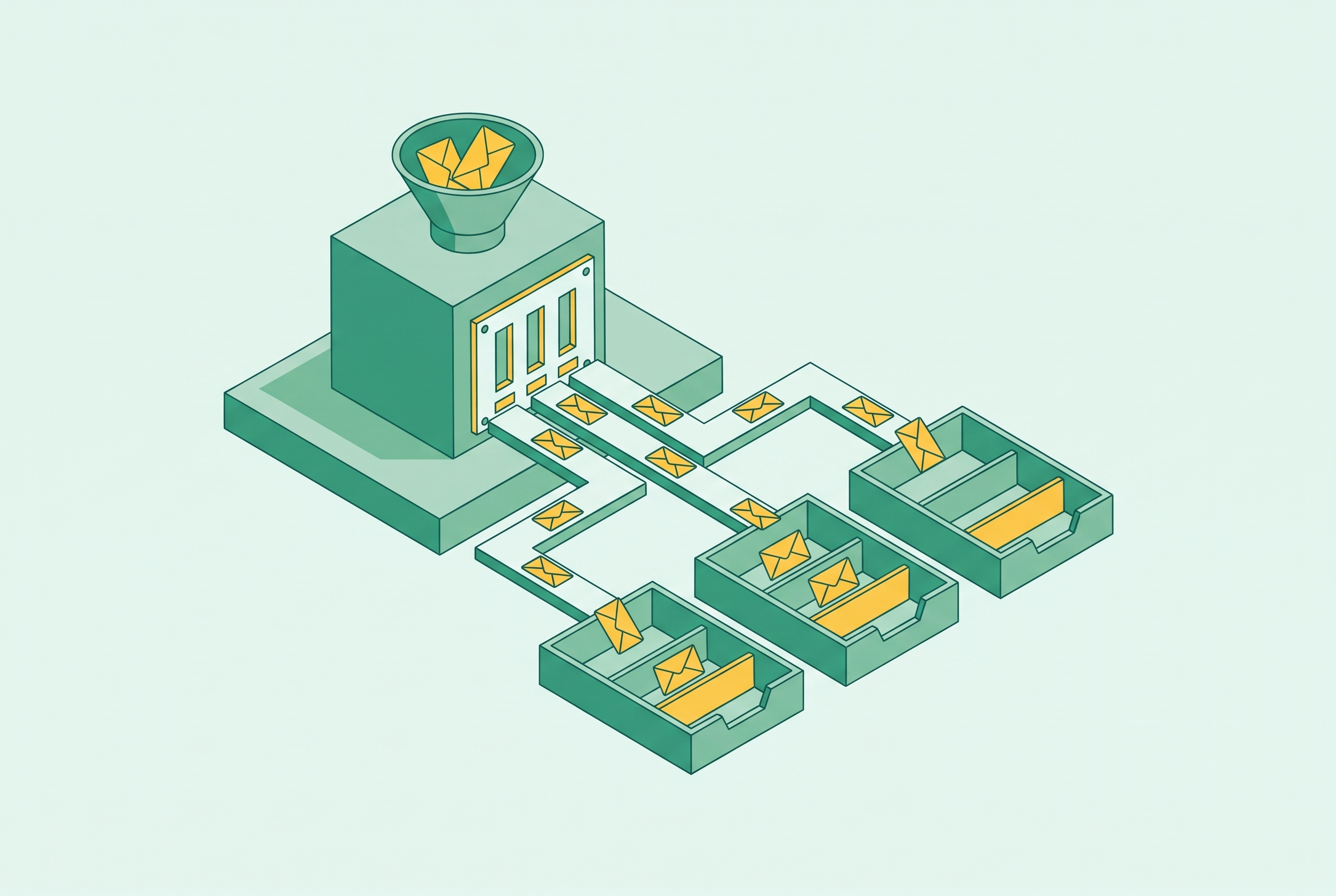
Each Gmail account has its own labels, filters, and inbox settings. The workable approach is to define one sorting logic, reproduce it in every account, and use that shared foundation on desktop and mobile.
Why Gmail's per-account architecture makes consistent sorting a deliberate act, not a setting
Signing into several Gmail accounts in the same browser does not link the settings that organize their mail. A filter created in one account affects only that account. Renaming a label does not rename it elsewhere, and changing the inbox layout leaves the other accounts untouched. Each account is its own organizational environment.
That separation fits Gmail’s search-driven design. The platform centers on finding messages through queries rather than maintaining a predetermined filing structure. Labels, filters, category tabs, and inbox types provide organization, but Gmail stores them per account, with no native mechanism to synchronize them. Consistency therefore requires deliberate replication, whether done manually or through automation.
Accounts that look different may just have different settings, or use learned prioritization based on the mail each account has received. A shared system needs both matching rules and a clear understanding of which Gmail features behave predictably.
What "consistent sorting logic" actually means before you configure anything
Before you open settings, decide what each account should do when mail comes in. What categories of mail need attention, and what should happen to everything else? Write down the label names, filter rules, and inbox type you want. That document becomes the template for every account.
A search-centric system keeps the inbox relatively flat and uses a few broad labels, such as Action, a label for mail needing follow-up, and Later. Search does most of the retrieval work. A sort-centric system uses nested labels and detailed filters so that messages are filed automatically. Either way works if it is the same in every account, though the second takes more work to copy.
Google’s Workspace Learning Center suggests action-oriented labels paired with a short daily triage window. Fewer labels mean fewer settings to copy, but a small label set is not the only valid choice. The trap is replacing inbox clutter with label-menu clutter. Because one message can have Travel, Receipts, and Taxes labels without duplication, overlapping labels can provide structure without requiring a separate category for every possible combination.
Building the label and filter foundation in each account
Create the labels before you build the filters. Filters reference labels by name, so each destination account needs the exact names and nesting that the rules expect. If the template uses Clients/ProjectA and Clients/ProjectB, reproduce that parent-and-child structure everywhere. Similar-looking names are not enough.
Gmail allows up to 5,000 labels in each account, but Google recommends 500 or fewer, including nested labels. Filters also have a per-account limit. Compound rules help keep the setup manageable by covering multiple senders or subjects in one filter, including combinations of sender domains and subject keywords. Test each query in Gmail’s search bar before saving it, because once the rule runs automatically, any mail it finds by mistake will get the wrong label or be archived.
Build the filter set in one account first. To copy it, open Settings, go to Filters and Blocked Addresses, select the filters, and use Export to save an XML file. In the next account, open Settings, go to Filters, and choose Import filters.
The import still needs an audit. Check that each rule points to a label with the right name and nesting, and change any addresses tied to one account, such as to:thisaccount@gmail.com. A copied rule is useful only if it points to the right destination in the receiving account.
Choosing and replicating the same inbox type across accounts
Filters determine where mail goes, while the inbox type determines what appears first. Matching filters will not make accounts feel alike if one opens with unread messages and another opens with starred mail. Open Settings, choose See all settings, and select the Inbox tab to set the inbox type. Apply the same choice in every account.
Gmail offers six inbox types, including Default, Important first, Unread first, Starred first, Priority Inbox, and Multiple Inboxes. Default shows mail chronologically with optional category tabs. Unread first puts unread messages at the top no matter when they arrived, while Starred first puts starred messages in their own section at the top. The latter depends on consistent starring habits.
Important first uses Gmail’s predictions, and Priority Inbox also depends on what an account has learned. Sorting with explicit filters is more reliable when the results need to be predictable, and Multiple Inboxes has custom sections based on searches.
For Default, match the category tabs too. Under Settings, Inbox, and Categories, toggle Primary, Social, Promotions, Updates, and Forums to match the template. These are separate per-account choices. Identical tabs provide the same display structure, although Gmail’s classification decisions can still vary with account history.
Using Multiple Inboxes to surface the same priority sections in every account
Multiple Inboxes works only on desktop, so it is not a complete solution for readers who mainly use the Gmail mobile app. It also does not combine accounts. Instead, it divides one account into the primary inbox and up to five additional sections, each defined by a search query. The labels and filters used by those sections still work on mobile.
To enable it, click the Settings gear, choose See all settings, open the Inbox tab, and select Multiple Inboxes under Inbox type. Configuration fields appear below the selector. Give each section a name and enter its query, then choose whether the sections sit to the right of, above, or below the primary inbox.
For example, label:action shows messages labeled Action, while a query for a follow-up label shows mail with that label. A section using is:starred shows starred messages, and label:clients is:unread narrows the view to unread client mail. A domain query such as from:(@domain.com) provides another repeatable section. Test each search before saving it.
There is no export-and-import route for this layout. Record the exact section names and queries in the template, then enter them manually in every account. Match the section placement as well, so the same kind of mail appears in the same place.
The platform centers on finding messages through queries rather than maintaining a predetermined filing structure.
What happens to consistent sorting on mobile
The Gmail app on iOS and Android does not render Multiple Inboxes. Messages appear in a standard view instead, but the labels remain available in the left-side navigation drawer. Tapping a label shows matching messages only in the active account. It does not search that label across other signed-in accounts.
For a combined view, tap the top-left hamburger menu and choose All inboxes. This brings messages from signed-in accounts into one chronological list. It does not create shared filtering rules or apply a cross-account sorting system.
The practical priority is therefore matching label names and filter rules. Filters can route mail into the right label views without the Multiple Inboxes layout. That foundation keeps the organizational logic consistent on both desktop and mobile.
The forwarding consolidation option and why it is closing off
Pulling mail into one Gmail hub avoids some repeated setup, but the POP3 route is being retired. Google began discontinuing Gmailify and the website’s “Check mail from other accounts” POP3 feature in early 2026. New users stopped being accepted after the first quarter of 2026. Existing setups continue until January 2027, when they stop, with no web-native replacement for centralizing multiple external mailboxes in one Gmail inbox.
Forwarding is a separate option and still works as of publication. Each secondary account can forward incoming mail to a primary account, where one filter set handles it. The trade-off is address clarity. Replies leave from the primary address unless Send Mail As is configured for each secondary address, and forwarding can also disrupt threading.
Filters in the receiving account can use the Delivered-To header to distinguish original destinations. For example, deliveredto:work@gmail.com can route forwarded work mail to a Work label. This approximates shared sorting, but it collapses account boundaries. For readers who do not need a single inbox, replicating labels, filters, and inbox settings is the forward-looking alternative that does not depend on POP3.
Desktop email clients as a structural alternative when replication is not enough
For readers managing three or more Gmail accounts, a desktop client can provide a different structure. A unified inbox presents incoming messages from configured accounts in one chronological stream. Shared sorting rules can then operate inside that client. This changes where the organization happens.
Spark and Edison Mail support a unified inbox and cross-account search. Microsoft Outlook’s new unified inbox combines accounts, though Search with Copilot is limited to the primary account. Mozilla Thunderbird supports OAuth 2.0 for Gmail, Microsoft, and Yahoo accounts and offers a no-cost option for locally stored mail. New accounts are set up automatically, but accounts already added may need to be set up by hand.
Authentication is another requirement to check. Gmail no longer allows IMAP access with an ordinary password, so a client should connect through OAuth or, as a fallback, use an App Password with 2-Step Verification turned on. A client that still depends on the regular account password will fail.
Client-side rules apply only inside the client. Readers who also use Gmail on the web or mobile still need the per-account foundation. A practical hybrid is to keep matching Gmail filters and labels for those interfaces, then use a desktop client for a unified view at a desk.
Privacy and access considerations when any third-party tool touches Gmail
Connecting a tool through OAuth gives it access to message data under its privacy policy. The requested permissions can extend beyond the feature that prompted the connection. A tool meant to read only selected messages may ask for permission to read, send, and delete mail. If the tool or its tokens are compromised, exposure follows the full permission grant.
OAuth access also persists until it is revoked. Changing the Gmail password does not invalidate existing grants. OAuth consent phishing exploits this distinction by getting a person to sign in normally, including multi-factor authentication, and then authorize an attacker-controlled app.
Before connecting a tool, read its permission screen and compare the requested access with its stated function. Review its privacy policy for retention, sharing, data sales, and model training. Prefer explicit subscription-only funding and a no-data-selling policy, rather than assuming that paid access settles those questions. Google also cautions that third-party Send as tools may require credentials or OAuth tokens that create security and privacy risks.
To remove access, open Google Account, select Security, then Third-party apps with account access. Select the app and choose Remove Access. This immediately invalidates its OAuth tokens, but it does not delete data already collected.
Using an automated digest to maintain visibility across all accounts without active monitoring
Once filters file messages automatically, an important message can be filed in the wrong place and go unseen. A daily digest of mail that was archived or routed away provides an audit trail without requiring a full inspection of every account.
Google’s Gemini Daily Brief draws from Gmail, Google Calendar, and Gemini chats to produce a morning summary. It is available to free personal Gmail users in the US who are 18 or older and have Personal Intelligence, Memory, and Google Workspace integration enabled in the Gemini app. It is not available to Google Workspace work or school accounts.
For a third-party digest, look for a scheduled summary specifically covering mail routed away from the primary inbox, delivered into the inbox itself. The useful final layer is visibility into what automation handled, so checking less often does not mean trusting the filters blindly.